
Enable or Disable Practice Online Scheduling
Practice level online scheduling allow practices with multiple service locations and providers to enhance their scheduling options. The online scheduler gives patients the ability to request appointments from the practice page or the provider profile page.
For a provider to be included in the practice level online scheduler, they must be a Engage or Patient Experience subscriber and set up the Online Appointment Booking section of their Provider Profile. The practice online schedule displays appointment times based on the set up of the provider(s) online schedule.
For Engage/Patient Experience and Telehealth subscribers, the online scheduler has the option for patients to request an in-office appointment or telehealth appointment. Once the online scheduler is enabled, patients will automatically have the option to select a telehealth appointment.
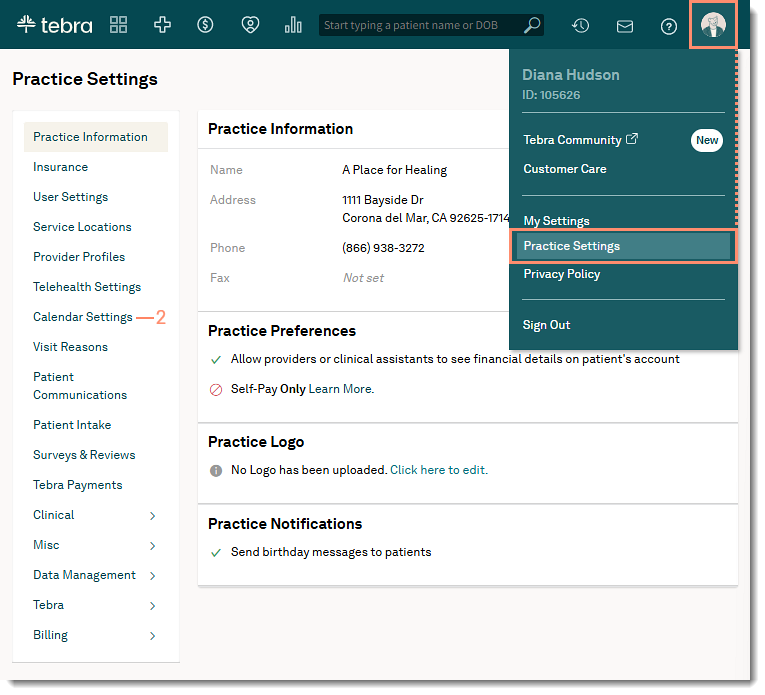
Access Online Scheduling
|
 |
Review Office HoursAvailable providers for practice online scheduling displays. The provider will not be included in the practice online scheduler until the office hours set up is complete.
|
 |
Enable Online SchedulerCreate a URL to create a site for patients to request appointments from the practice page The URL cannot be edited. Verify the URL is accurate and correct before saving.
|
 |
Disable Online SchedulerDisable the practice URL to turn off the practice's online scheduler. After the practice URL is disabled, patients will no longer be able to access the practice's online scheduler or access to Reserve with Google. If necessary, the online scheduler can be enable again using the same practice URL.
|
 |
 Important Note: Allow 24-48 hours for saved office hours changes to take effect.
 Tip: Use special characters such as a hyphen (-) or underscore (_) as separators.