Updated: 01/08/2026 | Views: 74867
Procedures are billed with Current Procedural Terminology (CPT) and Healthcare Common Procedure Coding System (HCPCS) codes used to accurately reflect the medical care provided to patients. The CPT and HCPCS code sets are included with Tebra and updated annually per American Medical Association (AMA) and Centers for Medicare & Medicaid Services (CMS) guidelines. However, you can deactivate or edit the local settings of these procedure codes as needed. You can also create new procedure codes for any unlisted codes, miscellaneous fees, or products (e.g., supplies, supplements).
 Important Note: Procedures are not practice specific and are shared across all practices within the Tebra account. Any additions or modifications will affect the entire Tebra account and all practices associated with it.
You always begin with finding the procedure before creating, editing, or deactivating a procedure.
Find Procedure
- On the top menu bar, click Settings > Codes > Find Procedures. The Find Procedure window opens.
- Enter all or part of a keyword for the procedure in the Look For search box. If needed, use the Search In filter to search a specific field. Then, click Find Now and the search results are listed.
|
 |
New Procedure
- To prevent duplication, verify the procedure is not in the system then click New at the bottom. The New Procedure window opens.
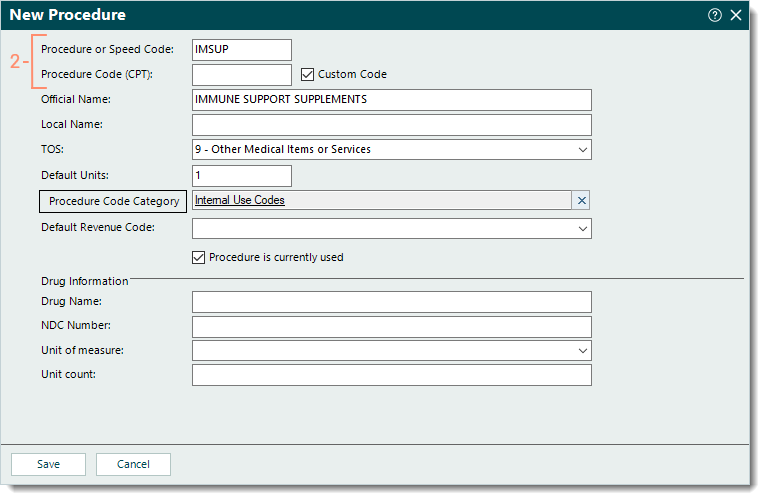
- Enter the code information.
- Procedure or Speed Code: The billable 5-character procedure code or an internal speed code.
 Tip: Speed codes can be used to distinguish between different services or supplies that use the same billable generic procedure code. Tip: Speed codes can be used to distinguish between different services or supplies that use the same billable generic procedure code.
- Procedure Code (CPT): The valid 5-character procedure code to be submitted on claims and overrides the code entered as the Procedure or Speed Code.
- If the billable 5-character code was entered in the Procedure or Speed Code field, the Procedure Code (CPT) field can remain blank.
- If an internal speed code was entered in the Procedure or Speed Code field, enter the valid 5-character procedure code in the Procedure Code (CPT) field.
- "Custom Code" checkbox: Deselected by default. Click to select "Custom Code" if an invalid or non-billable code (e.g., for internal use, exceeds 5 characters) is entered in:
- Both the Procedure or Speed Code and Procedure Code (CPT) fields.
- The Procedure Code (CPT) field with a 5-character code in the Procedure or Speed Code field.
|
 |
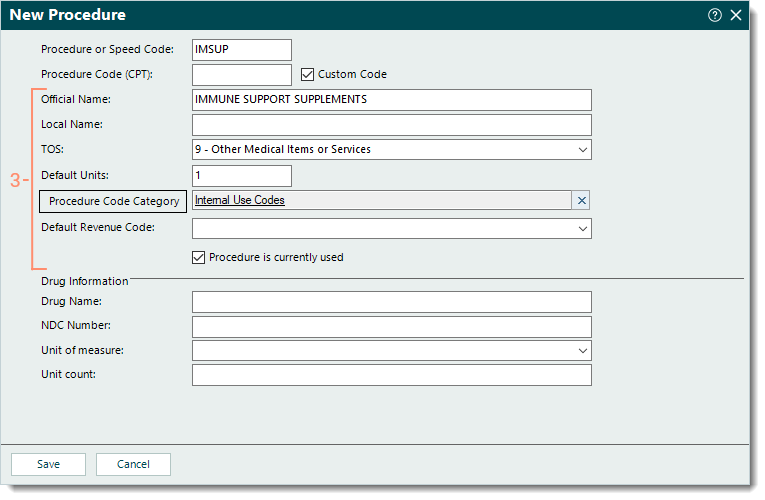
- Enter the information as necessary.
- Official Name: The official name for the procedure.
- Local Name: A simplified or more user-friendly name for the procedure to appear on encounters and patient statements.
- TOS: Click the drop-down arrow to select the type of service from the drop-down menu.
- Default Units: The default units for the procedure.
- Procedure Code Category: If the practice uses categories for certain reports, click to search and select the Procedure Category.
- Default Revenue Code: Applicable for UB-04 claims. Click the drop-down arrow to select the default revenue code from the drop-down menu.
- "Procedure is currently used" checkbox: Selected by default.
- To deactivate the procedure, click to clear the selection.
Note: Deactivating a procedure makes it unavailable for selection in encounters.
|
 |
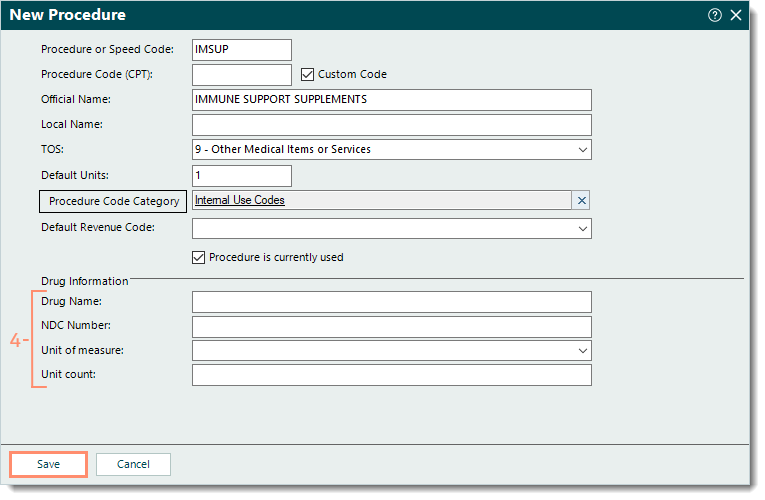
- Drug Information: If applicable, enter the drug information.
Note: To prevent rejections when submitting claims for these procedures, contact the payer directly to verify the required drug information.
- Drug Name: The name of the drug.
- NDC Number: The 11-digit NDC number (excluding hyphens).
- Unit of measure: Click the drop-down arrow to select the unit of measure for the drug.
Note: The MCG and MG qualifiers are only accepted on paper claims.
- Unit count: The unit count for the drug.
- Click Save. Repeat the steps for any additional new procedures. Once finished, log out and back into the Desktop Application (PM) to use the new procedure(s).
|
 |
Edit Procedure
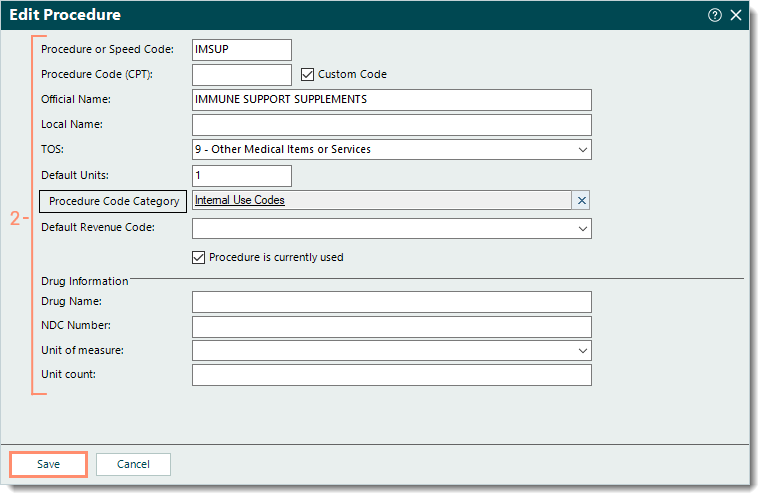
- Find the procedure then double click to open. The Edit Procedure window opens.
- Make the necessary changes.
Note: Only local settings are editable for Tebra subscribed procedures. For more customization, create a new procedure.
- Click Save. Log out and back into the Desktop Application (PM) to see the changes when using the procedure.
|
 |
Deactivate Procedure
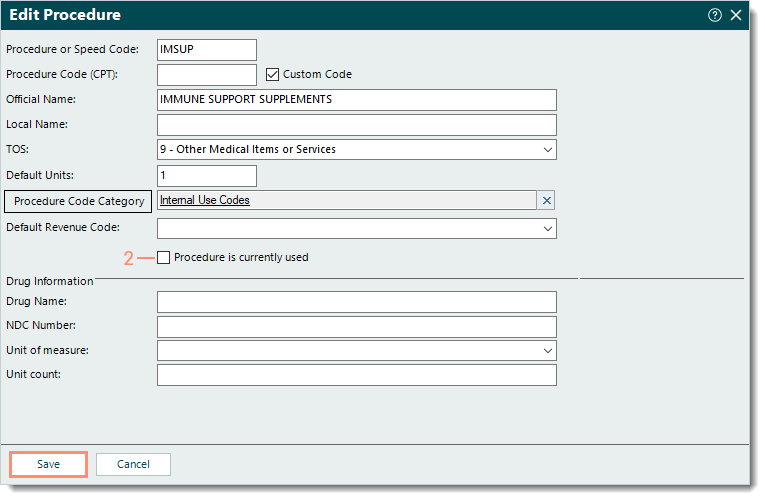
- Find the procedure then double click to open. The Edit Procedure window opens.
- Click to clear the "Procedure is currently used" checkbox.
- Click Save. The procedure is deactivated. Log out and back into the Desktop Application (PM) to see the procedure is no longer available for selection in encounters.
|
 |
