Kareo and PatientPop are now Tebra. Becoming Tebra will take time and we appreciate your patience as we transition to the new brand experience.Learn More
Tebra Help Center

Add, Edit, or Delete Time Off

Updated: 03/31/2026|Views: 5652

In the Calendar, time off for providers and staff are added as events, and patient appointments can be efficiently scheduled around them. When time off events change, you can easily edit or delete the event in the Calendar Settings.

Access Calendar Settings

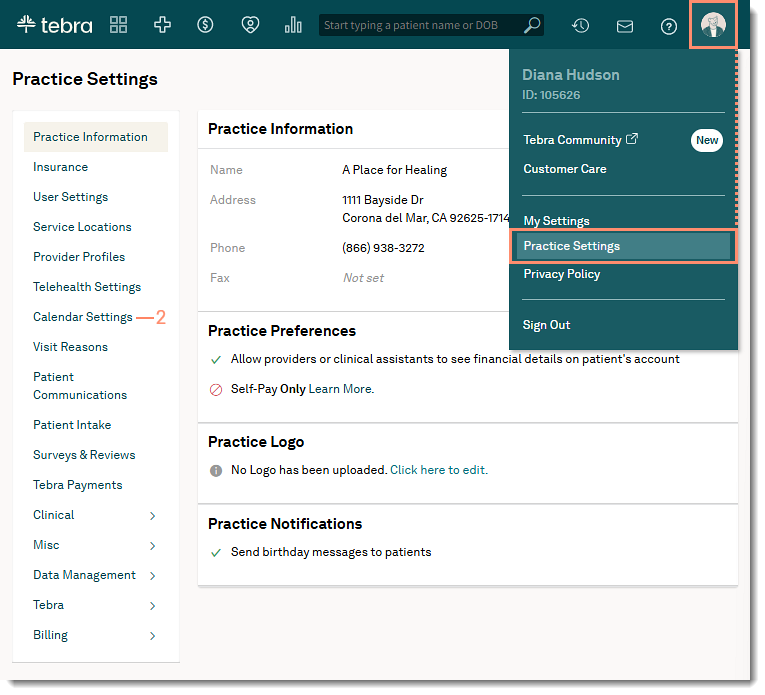
  1. Hover over the User icon and click on Practice Settings. The Practice Settings page opens.
  2. Click Calendar Settings. The Calendar Settings page opens.
The web platform Practice Settings menu with the Calendar Settings option highlighted for selection.
   

Add Time Off 

  1. Click Time Off. The Time Off page opens.
  2. Click + Add Time Off. The New Time Off pop-up window opens.
  3. Select the time off details:
    1. Select the Provider/Staff name of the from the drop-down list.
    2. Enter a Reason for the time off.
    3. Enter Start and End Dates/Times for the time off.
  4. Click Save. The new time off is added to Time Off and displayed on the calendar.
The web platform New Time Off window with fields for provider/staff name, reason, and start and end dates.

Edit Time Off

  1. Click Time Off. The The Time Off page opens.
  2. Click the more option icon and select Edit. The Edit Time Off pop-up window opens.
  3. Make applicable changes to the selected Provider/Staff member, time off Reason, Start and End Date/Time.
  4. Click Save when finished. The updated time off displays in Time Off and on the calendar.
The web platform Edit Time Off window showing options to modify the provider/staff member, reason, or duration.

Delete Time Off

  1. Click Time Off. The The Time Off page opens.
  2. Click the more option icon and select Delete. The Delete Time Off pop-up window opens.
  3. Click Delete to confirm. The time off is removed from Time Off and from the calendar.
The web platform Confirmation window for deleting a scheduled time off from the calendar.
  • Was this article helpful?