Enable or Disable Group Appointments
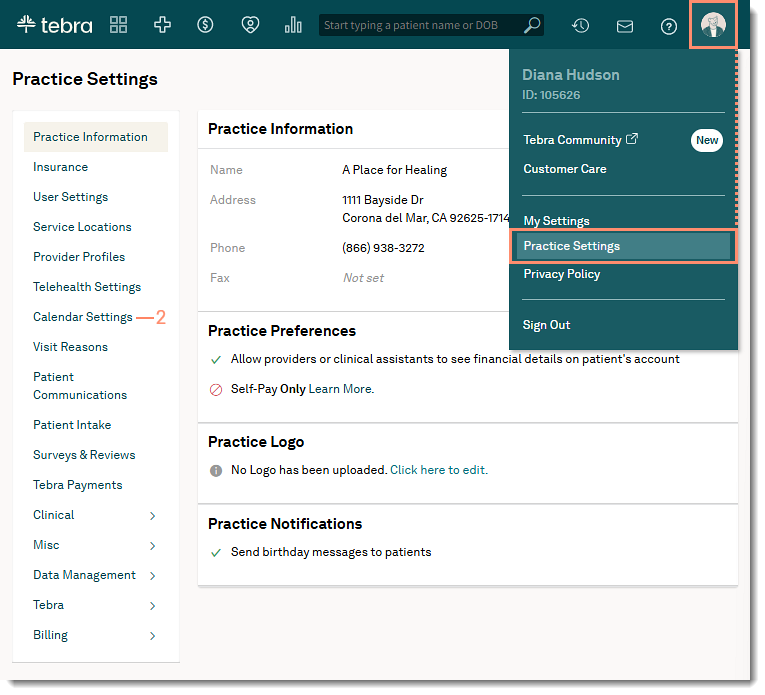
Updated: 03/06/2026 Views: 3856If your practice schedules group appointments, you must first enable this feature in the Calendar Settings. Once enabled, the option to schedule a group appointment appears when adding a new appointment through the Calendar.
You can disable the Group Appointments feature in the Calendar Settings. Once disabled, the option to schedule a group appointment will no longer be available until this feature is enabled again. Disabling this feature does not affect past and upcoming group appointments.
Access Calendar Settings
|
 |
Enable Group Appointments
|
 |
Disable Group Appointments
|
 |