Kareo and PatientPop are now Tebra. Becoming Tebra will take time and we appreciate your patience as we transition to the new brand experience.Learn More
Tebra Help Center

Set Practice Holidays

Updated: 03/06/2026|Views: 2454

By default, Tebra includes a pre-set list of commonly observed U.S. holidays on the Calendar. You can modify this list to reflect the holidays observed by your practice. If your practice observes holidays not currently on the Tebra pre-set list, you can add a Custom Holiday. The Custom Holiday appears in the Practice Holidays section and is easily identified by the Custom Holiday icon.

Access Calendar Settings

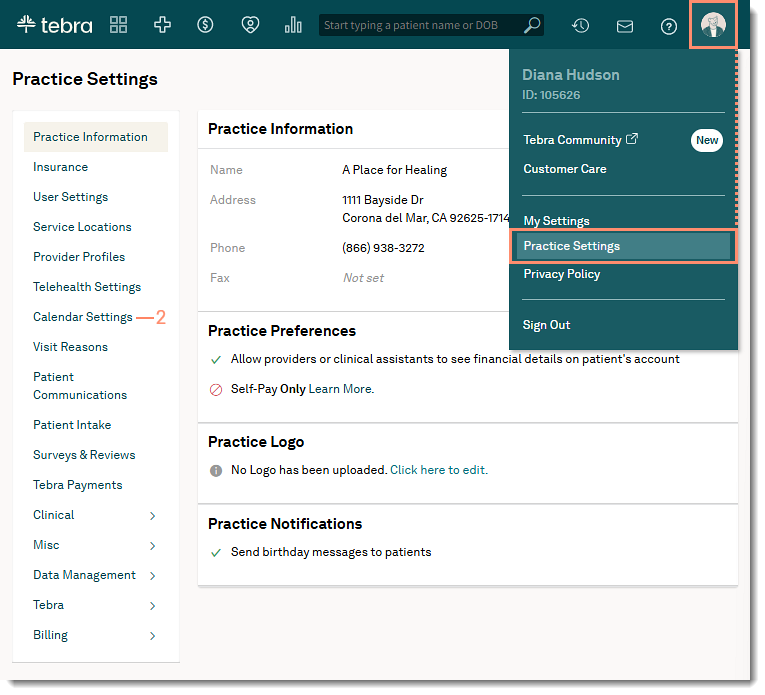
  1. Hover over the User icon and click on Practice Settings. The Practice Settings page opens.
  2. Click Calendar Settings. The Calendar Settings page opens.
The web platform Calendar Settings page with the Group Appointments toggle switch set to the ON position.

Set Standard Holidays

  1. Click Holidays & Closures. The Practice Holidays & Closures page opens.
  2. Click Manage Observed Holidays. The Edit Holidays pop-up window opens.
  3. Click to select which holiday(s) the practice observes.
     Tip: Click Check All to select all holidays.
  4. Click Save when finished.
The web platform Calendar Settings Edit Holidays pop-up showing a checklist of standard observed holidays for the practice.

Add Custom Holiday

Custom Holidays cannot be edited. To make changes, remove the custom holiday and add a new one.

  1. Click Holidays & Closures. The Practice Holidays & Closures page opens.
  2. Click + Add Custom Holiday. The New Custom Holiday pop-up window opens.
  3. Enter the custom holiday Name and Date.
  4. Click Save. The new custom holiday appears under Practice Holidays.
The web platform Calendar Settings New Custom Holiday pop-up with fields for the holiday name and specific date.

Remove Custom Holiday

  1. Click Holidays & Closures. The Practice Holidays & Closures page opens.
  2. Hover over the custom holiday and click trash icon. The Delete Custom Holiday confirmation window opens.
  3. Click Delete to confirm. The custom holiday is removed from the practice holiday list.
The web platform Calendar Settings Confirmation pop-up to remove a custom holiday from the practice holiday list.