Kareo and PatientPop are now Tebra. Becoming Tebra will take time and we appreciate your patience as we transition to the new brand experience.Learn More
Tebra Help Center

Manage Team Member

Updated: 04/16/2026|Views: 3741

System Administrators can create new team members at any time. Before adding a new team member, be sure to have the person's full name and valid email address on hand. Once team members are added, the system will automatically send an email to them with their user name and temporary password. New users are prompted to create a new password upon the first login.

Additionally, System Administrators can edit team member details. If the team member should no longer access the practice, deactivate their account. Deactivating the account makes them inaccessible to the system and can be reactivated at a later time.

Access Team

  1. Click Settings. The Settings pop-up window opens.
  2. Click Team. The Team Settings page opens.
PracticeGrowth_TeamMember_Access.png

Add New Team Member

Create an account for the staff in the practice to see new reviews, manage leads, and get insights through the practice portal.

  1. Click the + icon. The Add Team Member pop-up window opens.
  2. Enter the team member First Name, Last Name, and Email address.
  3. Click Send Invite when finished. An email invitation is sent to the new team member with a temporary password to sign in.
    Note: The email invitation is sent from support@patientpop.com and the temporary password will expire after 7 days.
PracticeGrowth_TeamMember_Add.png

Resend Team Member Invite

If the team member has not logged in within 7 days of receiving the invitation, resend the invitation to generate a new temporary password.

If the incorrect email was used to create the account, edit the team member to enter in the valid email address first. Then, resend the invitation.

  1. Click the Pending tab. A list of users who never signed in displays.
    • If applicable, click the team member row to edit the team member name or email. Then, click Save.
  2. Hover over the team member and click Resend Invite. An email invitation is sent to the new team member.
    Note: The email invitation is sent from support@patientpop.com and the temporary password will expire after 7 days.
PracticeGrowth_TeamMember_Resend.png

Edit Team Member

Update the team member's account details or send a reset password as applicable.

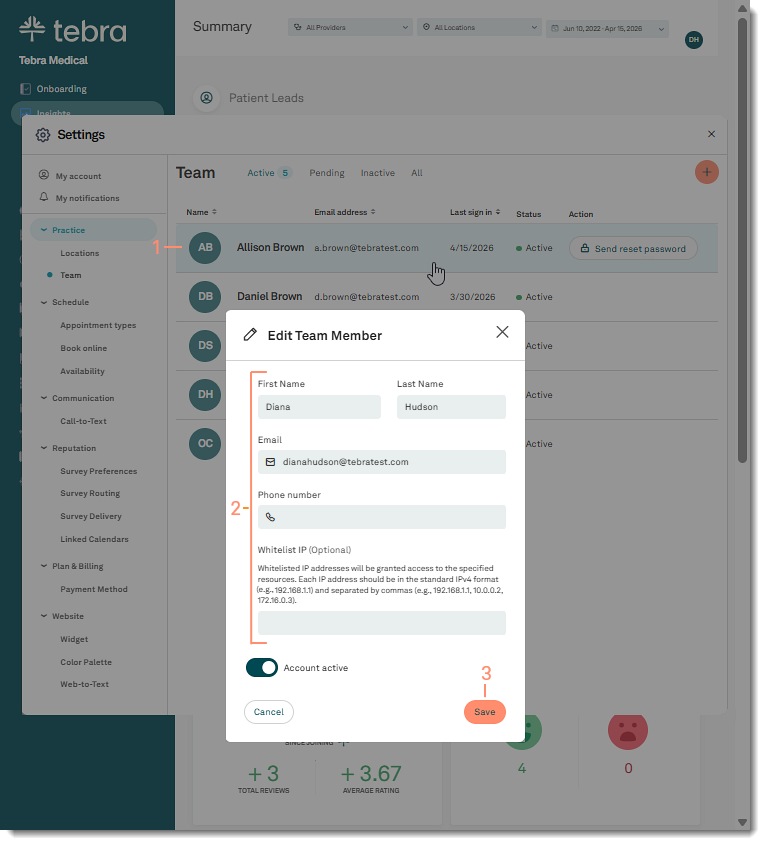
  1. Click the team member row. The Edit Team Member pop-up window opens.
    • If the user does not remember their password, click Send reset password. A reset password email is sent to the user.
      Note: The request to reset the password will expire after 24 hours.
  2. Make any necessary changes:
    • First Name
    • Last Name
    • Email
    • Phone Number: Optionally add a phone number for the team member.
    • Whitelist IP: Optionally add an IP address to grant access to the specified resources.
  3. Click Save when finished.
PracticeGrowth_TeamMember_Edit.png

Deactivate Team Member

When a user should no longer access the practice, deactivate the user’s account to make Tebra inaccessible. The user account should not be repurposed for another user. The account remains in the system under the Invite list and can be reactivated when necessary.

Note: Team member accounts cannot be deleted.

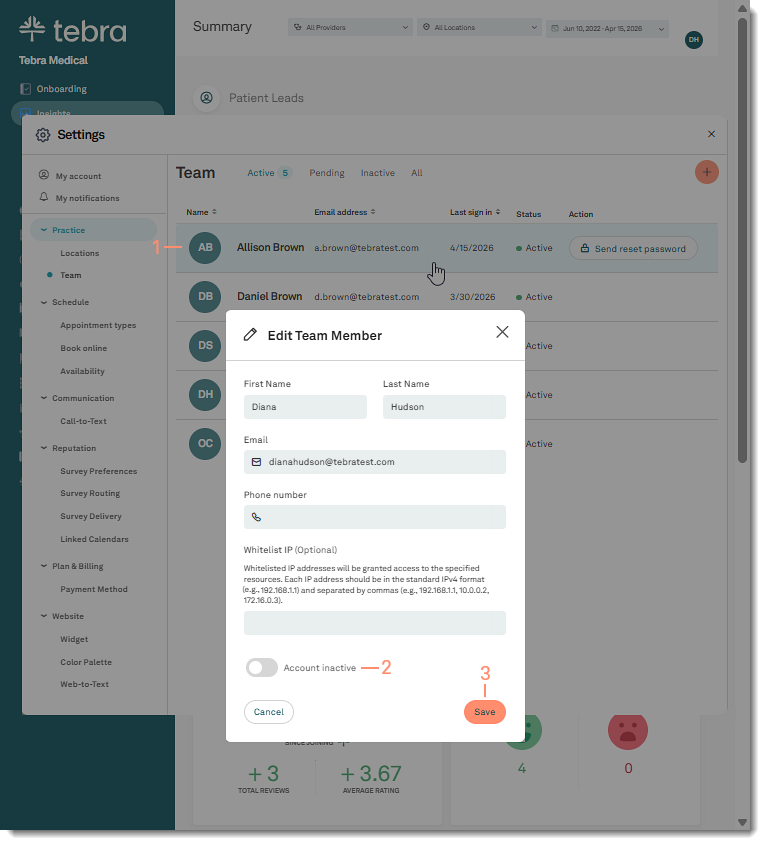
  1. Click the team member row. The Edit Team Member pop-up window opens.
  2. Click the Account active toggle off.
  3. Click Save when finished. The account is moved to the Inactive tab and the user can no longer access Tebra.
PracticeGrowth_TeamMember_Deactivate.png

Reactivate Team Member

Deactivated accounts remain in the system under the Inactive tab and can be reactivated when necessary. Team members will be sent an email with a temporary password and prompted to create a new password after signing in.

  1. Click the Inactive tab. A list of deactivated accounts displays.
  2. Click Reactivate member. The Reactivate team member pop-up window opens.
  3. Click Send reactivation email. The account is moved to the Active tab and an email invitation is sent to the team member with a temporary password to sign in.
    Note: The email invitation is sent from support@patientpop.com and the temporary password will expire after 7 days.
PracticeGrowth_TeamMember_Reactivate.png
  • Was this article helpful?