Activate Patient Portal

Updated: 12/12/2025|Views: 61811

The Patient Portal is a convenient and efficient way for practices to collect payments and for patients to easily pay their bills online. After activating the Patient Portal, a practice simply collects patient email addresses within the Desktop Application (PM). Then, patients will automatically be emailed when they have a bill and can access their statements online to securely make a payment. Through Patient Portal, practices can view which emails have gone out and when payments come in.

Review Navigate Patient Portal to learn more about the Patient Portal Dashboard.

Activate Patient Portal

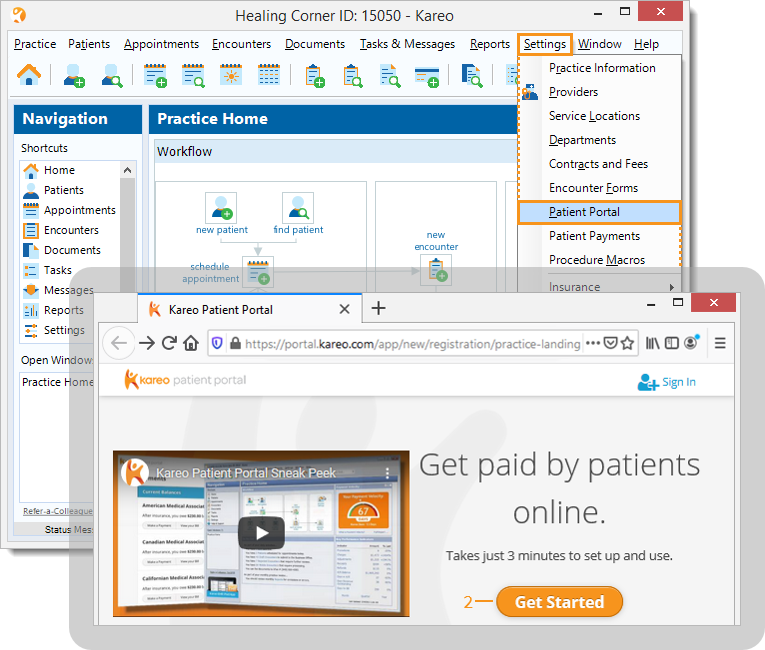
  1. Click Settings > Patient Portal. The Patient Portal Sign in page opens.
    • If prompted, click Get Started.
Multiple screenshots: Desktop App (PM), Settings menu with Patient Portal option and Patient Portal page to get started.
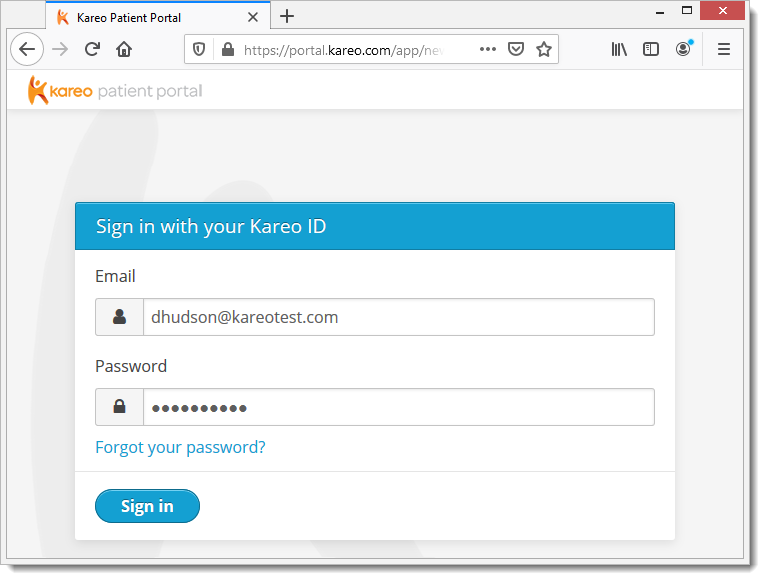
  1. Enter the Kareo login email credentials > Click Sign in. The Kareo Terms of Service page opens.
The Patient Portal Sign In page prompting for login email and password credentials.
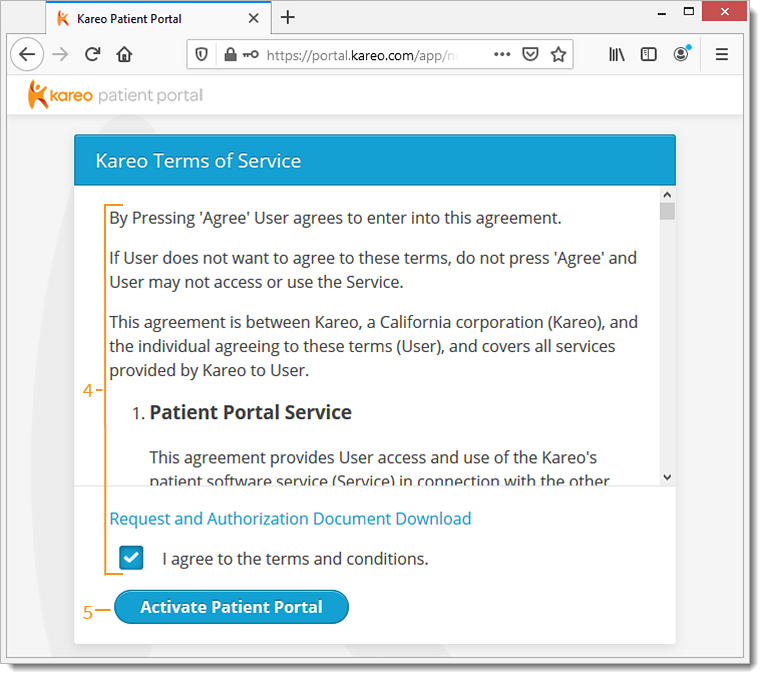
  1. Scroll to read the terms of service. To agree to the terms, click to select "I agree to the terms and conditions".
    • To download a Request for Electronic Access and Authorization for Email Communication document, click Request and Authorization Document Download.
  2. Click Activate Patient Portal. The Patient Portal Dashboard page opens.

Note: In order to accept payments through the Patient Portal, set up online payments.


The Patient Portal, Terms of Agreement page showing the agree to terms checkbox and Activate Patient Portal button.