Kareo and PatientPop are now Tebra. Becoming Tebra will take time and we appreciate your patience as we transition to the new brand experience.Learn More
Tebra Help Center

Patient Experience: Patient Portal Password Reset

Updated: 02/19/2026|Views: 34

Patients change or reset the existing password associated with their Patient Portal login to view their health record online. To successfully update their password, patients must have access to the email inbox associated with their login email.

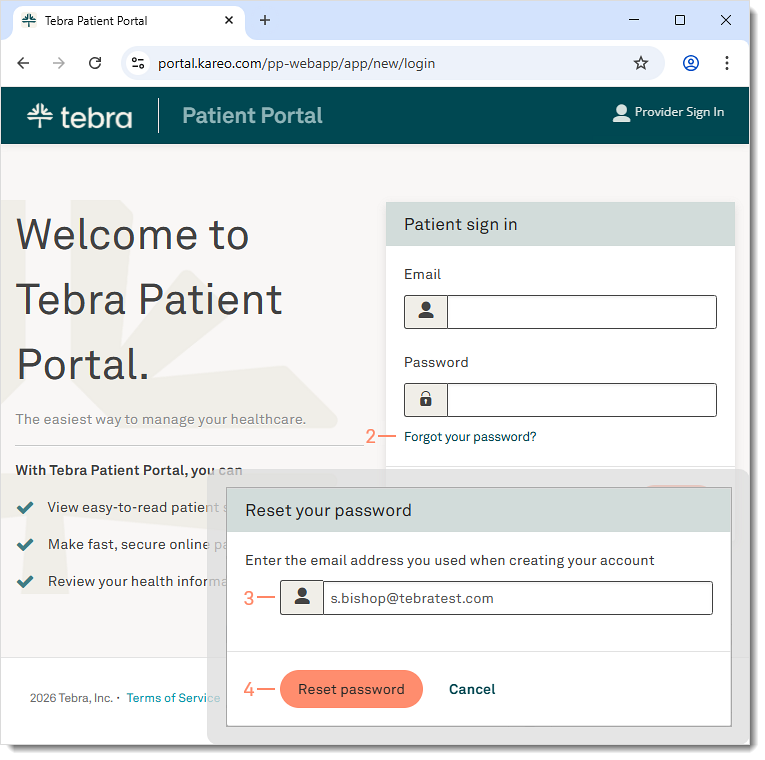
Access Forgot Password

  1. The patient opens portal.kareo.com in a web browser. The Patient Portal page opens.
  2. Patient clicks Forgot your password?.  The Reset your password pop-up window opens.
  3. Patient enters the Email associated with their account.
  4. Patient clicks Reset password. The Password reset confirmation pop-up window opens and the password reset email is sent to the patient's inbox.
PatientExp_PatientPortal_ForgotPassword.png

Reset Password

  1. Once the email is received, copy the temporary password.
  2. Click Create New Password Now to reset the password. The Account Settings page opens.
PatientExp_PatientPortal_ForgotPasswordEmail.png
  1. Paste the temporary password in the Current Password field.
  2. Enter the New Password and again to Confirm Password.
  3. Click Update Password. The password is updated and the Patient Portal dashboard opens.
PatientExp_PatientPortal_ResetPassword.png
  • Was this article helpful?