Tebra Payments: Add Patient Payment Card
- Last updated
-
-
Save as PDF
Updated: 11/04/2026 | Views: 19
Securely save and manage patient payment card information in Tebra to easily record payments made for copays and outstanding account balances. Practices with the Tebra Payments activated can process credit card payments through Tebra. For security purposes, the card number is not stored in Tebra. Only the last four digits and expiration date can be viewed by the practice.
For practices who subscribe to Engage and has the Tebra Payments activated, send a Credit Card Authorization form through the Patient Intake workflow. Patients can add, edit, or remove credits card(s) on file and electronically sign the authorization form.
Note: For Patient Collect (Stripe) activated practices, review Patient Collect (Stripe): Add Patient Payment Card.
Access Payment Cards
- Enter the first 2–3 letters of the patient's name or date of birth (mm/dd/yyyy) in the top navigation bar search box.
- Click to select the patient from the auto-populated results. The patient's record opens to the Face Sheet.
- Click Account. The Account page opens.
- Click the Payment Cards tab. The Payment Cards page opens.
|
 |
Add First Payment Card
- Click +Add a Card. The Add a Card editor opens.
- Enter Details:
- Enter the Cardholder Name.
- Optionally, add a Card Nickname or Comments for practice that displays view when collecting a patient payment.
- Enter the Billing Address.
- Click Add Card Number. The Add Card pop-up window opens.
- Enter the Card Number, Expiration Date, and CVC.
- Click Save Card when finished. The card is saved and marked as default.
|
 |
Add Additional Payment Card
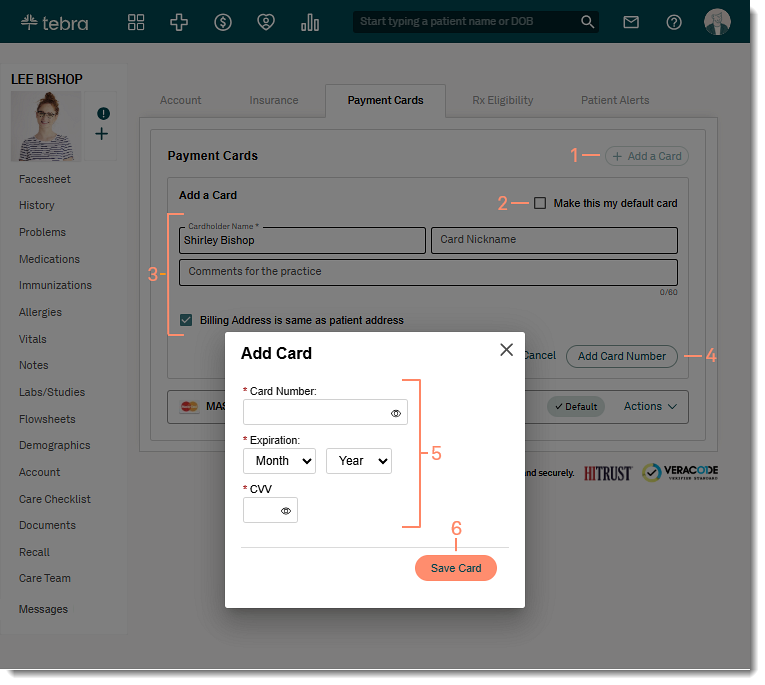
- Click +Add a Card. The Add a Card editor opens.
- Click to select "Make this my default card" to designate this card as the default payment card.
- Enter Details:
- Enter the Cardholder Name.
- Optionally, add a Card Nickname or Comments for practice that displays view when collecting a patient payment.
- If the billing address is different than patient address on file, click to clear "Billing address is same as patient address". Then, enter the billing address for the card.
- Click Add Card Number. The Add Card pop-up window opens.
- Enter the Card Number, Expiration Date, and CVC.
- Click Save Card when finished. The card is saved.
|
 |
