Kareo and PatientPop are now Tebra. Becoming Tebra will take time and we appreciate your patience as we transition to the new brand experience.Learn More
Tebra Help Center

Access Customer Care Portal

Updated: 07/09/2026|Views: 16

The Tebra Customer Care Portal brings support resources together in one place, making it easier to find answers, submit support requests, track your cases, and access help whenever you need it.

Through the portal, you can:

  • Search help articles
  • Submit support requests
  • View and track your support cases
  • Access customer support resources from a single location

Access Customer Care Portal

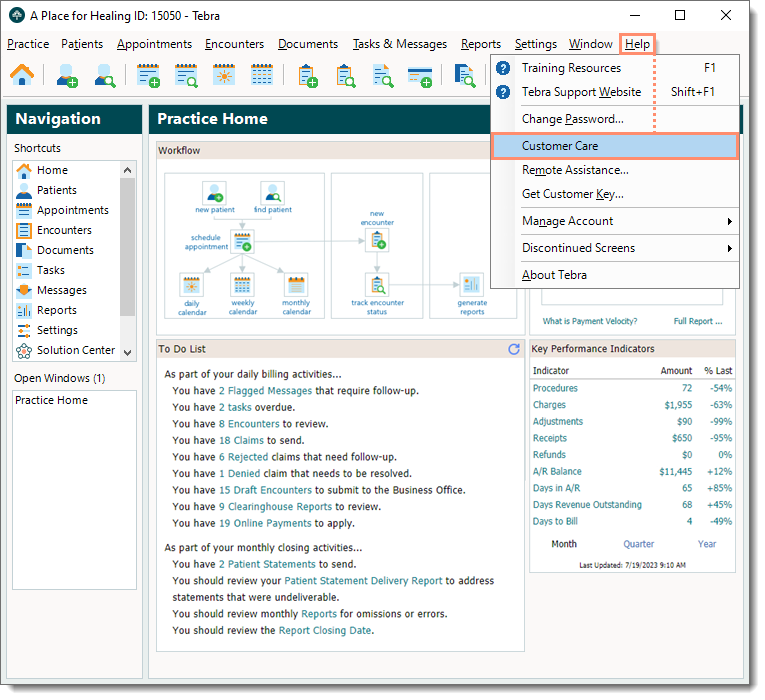
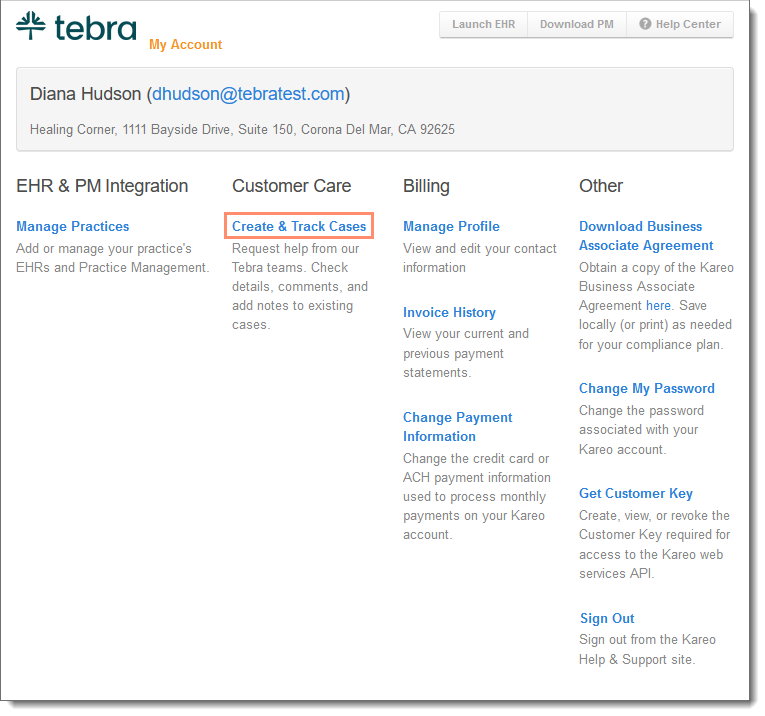
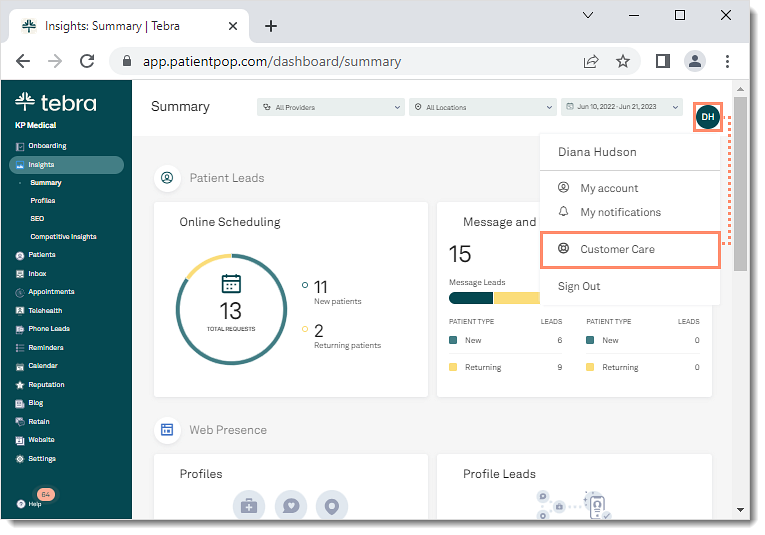
The Customer Care Portal can be accessed from the Platform, Desktop Application (PM), My Account, Practice Growth, or by navigating directly to support.tebra.com to log in.

Platform

  • Users logged into the web platform can hover over the User icon and click on Customer Care. The Customer Care Portal login page opens.
The web platform showing the dashboard with a user profile menu open and the Customer Care option highlighted for selection.

Desktop Application (PM)

The Desktop Application (PM) showing the Help menu with the Customer Care option selected.

My Account

  • Users logged into My Account can click Create & Track Cases under the Customer Care section. The Customer Care Portal login page opens.
The My Account page showing the Create and Track Cases link highlighted under Customer Care.

Practice Growth

  • Users logged into Practice Growth can hover over the User icon and click on Customer Care. The Customer Care Portal login page opens.
The web platform Insights Summary page showing the user menu open and Customer Care option highlighted.

Log into Customer Care Portal

  1. Enter the Username (email address) and Password associated with the Customer Care Portal user account.
    • If the password cannot be recalled, click Forgot your Password?. The Forgot your password? page opens then follow the instructions to reset the password.
    • If a user account has not yet been created, click Click here to submit a request.
  2. Click Log in. The Home page of the Customer Care Portal opens.
Customer Care Portal Login page highlighting the Username and Password fields and the Log in button.


  • Was this article helpful?