Kareo and PatientPop are now Tebra. Becoming Tebra will take time and we appreciate your patience as we transition to the new brand experience.Learn More
Tebra Help Center

Navigate Subscription Management

Updated: 09/23/2026|Views: 11

Tebra Subscriptions lets practices create fixed-amount recurring plans (e.g., concierge memberships, direct primary care tiers, wellness programs) and automatically charge enrolled patients on a weekly, monthly, or quarterly schedule using a saved card.

Note: The Subscriptions feature is available for practices with Tebra Payments or Patient Collect (Stripe) activated. It is designed for recurring membership or access fees and is separate from claims, services, and patient balances. To collect patient payments for outstanding balances, review Collect Patient Payment (Tebra Payments) or Collect Patient Payment (Stripe).

Access Subscription Management

  • Hover over the Billing icon and click Subscriptions under the Recurring Payments menu. The Subscriptions Management page opens.
Web platform dashboard showing the Billing menu highlighting the Subscriptions menu option under the Recurring Payments submenu.

Navigate Subscription Management

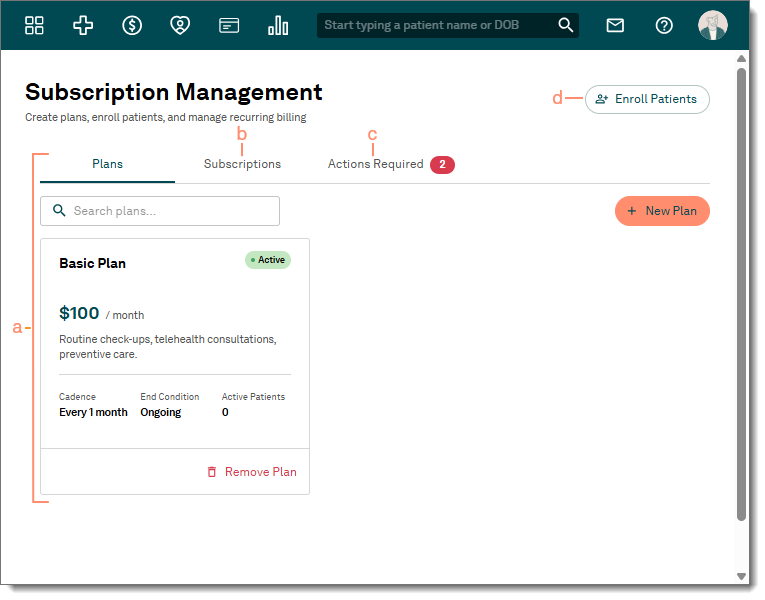
  1. Plans: Displays the existing plans created by the practice, Search box to search for a specific plan, and + New Plan button to create a new plan. The Create a Plan card with the + Create Plan button also displays if no plans have been created yet.
  2. Subscriptions: Provides a report of patients enrolled in a plan.
  3. Actions Required: Provides a report of subscriptions that need attention (e.g., needs authorization, card expiring soon, etc.).
  4. Enroll Patients: Click to open the Enroll Patients in a Plan page that provides a report of available patients that can be selected and enrolled in a plan.
Web platform Subscription Management page, highlighting the available options: Plans, Subscriptions, Actions Required, and Enroll Patients.
  • Was this article helpful?