
Release Notes March 2026
On March 18, 2026, your Tebra account will be upgraded to the latest version. Features will be available the following day with the exception of specified timelines.
Billing |
Billing General Improvements
- Tebra was updated with:
- The new Proprietary Laboratory Analyses (PLA) codes that go into effect April 1, 2026. Visit the AMA website for more general information about the PLA Codes.
- HCPCs (Level I and II) and Medicare Fee Schedule (RVU, GPCI, Locality and Conversion Factor) updates. Visit the CMS website for more general information about HCPCS and Fee Schedules.
- A new Weekly (Digital-First) cadence was added to the Automated Patient Billing Settings.
- The billing contact information set in the Patient Statement Options is now included in Text Balance Reminders and Email Balance Reminders sent to patients. Feature will be available by the end of March 2026.
- The Revenue Cycle Performance Dashboard (Beta) is being phased out as part of a transition to a consolidated web-based reporting suite and will no longer be available as of March 24, 2026. This beta report was introduced as a preliminary tool to monitor Revenue Cycle Management (RCM) performance, specifically focusing on billing cycles and electronic remittance advice (ERA) posting efficiency. In the meantime, practices are encouraged to use the Key Indicators Summary Report to ensure uninterrupted access to the Days to Bill metric. The ERA posting metric of this beta report will be integrated into the vision for our new reporting tool.
Billing Resolved Issues
- Fixed an issue where text messages were not being sent to patients
- Fixed an issue where the Billing Analytics report incorrectly displayed zero values
- Fixed an issue where the Key Indicators Summary Beta report did not display the correct data when the Report Type was filtered to Monthly
- Fixed an issue for Patient Collect (Stripe) activated customers where a blank screen displayed when connecting to the Stripe account
Clinical
Clinical General Improvements
- Updated COVID-19 vaccines for 2025-2026 and the following vaccines are now available to add as historical:
- Comirnaty 2025-2026 (5-11Y)(PF)
- Nuvaxovid 2025-2026 (PF)
- Spikevax 2025-2026 (12y up)(PF)
- Spikevax 2025-26 (6M-11Y)(PF)
- Mnexspike 2025-2026 (PF)
- Comirnaty 2025-26 (12y up)(PF)
Clinical Resolved Issues
- Fixed an issue where providers received an error message when attempting to prescribe a controlled substance from a clinical note
Patient Experience
Enhancement: Provider Online Scheduling Listing
| The Online Scheduling enhancements improve booking accuracy by displaying the provider’s credentials, specialties, and the city with state in the location drop-down during the scheduling process. Patients can confidently choose the right provider and location without confusion, reducing booking mistakes and follow-up work for practice staff. Note: The provider specialty is pulled from the Primary Specialty selected on the Provider Profile. Feature will be available for Patient Experience and Engage subscribers by the end of March 2026. |
 |
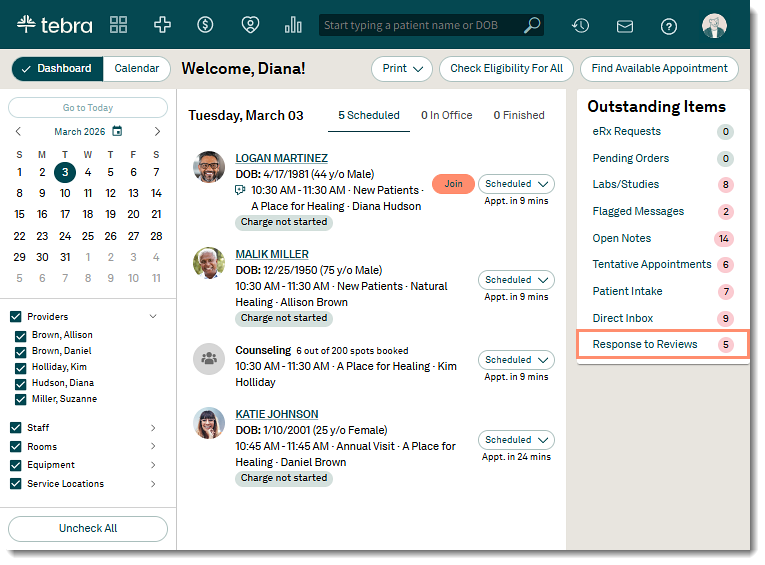
Enhancement: Outstanding Items
The Tebra practice dashboard consolidates all your essential setup and patient engagement tasks into a single location. This gives you an instant, clear view of what requires attention, allowing you to act quickly without navigating multiple pages within Tebra. With prioritized setup guidance and unattended reviews, practices get the foundation to improve visibility, strengthen patient communication, and stay on top of their online reputation.
Feature will be available for Practice Operation subscribers with Patient Experience by the end of March 2026.
The new outstanding items includes:
|
 |
Patient Experience Resolved Issues
- Fixed an issue where the the Performance Dashboard did not display an accurate count of Follow-Up Surveys
- Fixed an issue where an existing patient’s communication preference is modified when the patient schedules a new appointment via online booking
- Fixed an issue where a booked time slot displays as available on the provider’s Tebra Care Connect online scheduler
Platform
Enhancement: Visit Reasons
Our enhanced Visit Reasons transform your schedule into a custom color-coded dashboard that minimizes cognitive load and maximizes scheduling accuracy. With the new visit reason update, the practice can choose a custom visit reason color from an expanded color selection using a color picker, RGB color values, HSL color values, or HEX color codes.
Set Visit Reason Color
|
 |
Platform Resolved Issues
- Fixed an issue where text messages were not being sent to patients
- Fixed an issue where patient documents sent to the Patient Portal incorrectly displays the sender as John Doe