Tebra Payments Terminal: Collect Payment
- Last updated
-
-
Save as PDF
Updated: 11/05/2026 | Views: 2448
Tebra Payments activated practices that have purchased and completed the terminal device setup can begin to use the terminal device to take secure in-person payments. The terminal supports chip, swipe, and contactless payments, including Apple Pay and Google Pay. To collect patient payments manually or with a saved card, review Tebra Payments: Collect Payment. To learn about the feature in the Desktop Application (PM), review, Tebra Payments: Collect Patient Payment.
For Patient Collect (Stripe) activated practices, review Patient Collect (Stripe): Collect Payment or Stripe Terminal: Collect Payment.
Note: This feature is available for Billing subscribers.
Initiate Payment
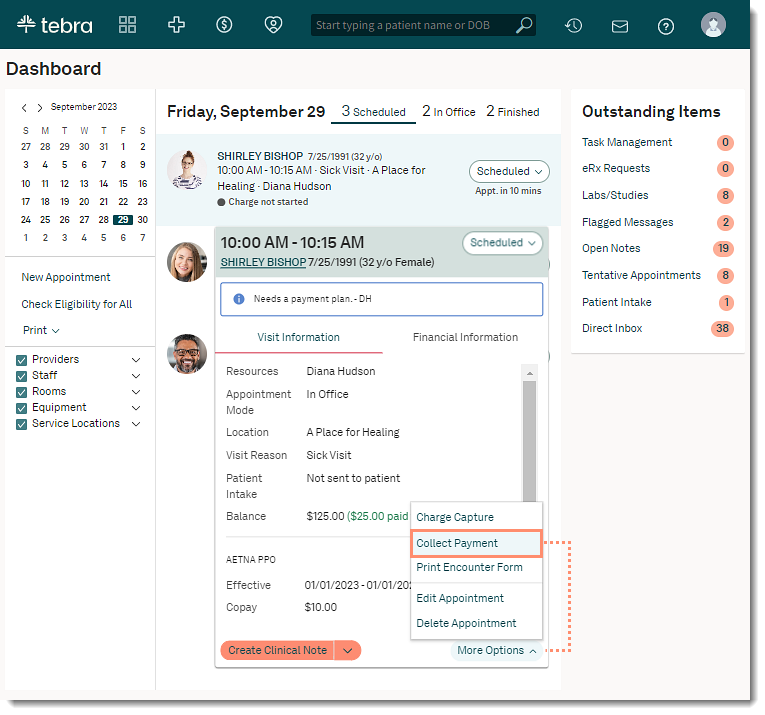
A patient payment can be collected from various locations: the patient's appointment on the Dashboard, the patient's Facesheet, the patient's Account tab, etc. It is recommended to collect the payment from the Dashboard to display the amount collected today on the patient's appointment card.
- Hover over the Platform icon and click on Dashboard. The Dashboard opens.
- Click on the appointment to view the appointment card.
- Click More Options and select Collect Payment. The Collect Payment page opens.
|
 |
Collect Patient Payment
- By default, the Payment Amount is populated with the Outstanding Balance. If necessary, enter a different payment amount.
- To enter additional details about the payment (e.g., date of service), click Add Note. This note is only visible to the practice and does not print on the patient receipt.
- Payment Method: Keep "Credit Card" selected by default. Then, click to select the "Use Terminal".
- Select the terminal from the Select Device drop-down.
- To save the new card on file, click to select "Save this card on file". For convenience, Tebra has provided a credit card authorization form that can be used to obtain authorization from the cardholder to save their card on file. To download the form, click Download the credit card authorization form for a template. Optionally, enter a Card Nickname or notes (up to 500 characters) into the Comments for Practice field. Engage subscribers and accounts that have access to Patient Intake also have the option to send the Credit Card Authorization form to the patient.
- Click Collect Payment. The Insert, tap or swipe card to pay pop-up message displays.
- Collect the payment with the terminal. Once the patient payment has successfully processed, Payment Completed Successfully message displays.
- Click Save Charge when finished.
|
 |
