
Release Notes September 2026
On September 23, 2026, your Tebra account will be upgraded to the latest version. Features will be available the following day with the exception of specified timelines.
Billing |
Recurring Payments: Subscriptions
Tebra Subscriptions lets practices create fixed-amount recurring plans (e.g., concierge memberships, direct primary care tiers, wellness programs) and automatically charge enrolled patients on a weekly, monthly, or quarterly schedule using a saved card.
Note: Feature is available for practices with Tebra Payments or Patient Collect (Stripe) activated. Subscriptions is designed for recurring membership or access fees and is separate from claims, services, and patient balances.
|
Access Subscription Management
|
 |
|
Navigate Subscription Management
|
 |
Billing General Improvements
- The AI Claim Review feature included in Tebra’s AI Billing Assistant now has Similar Denied Claims to allow practices to review previously denied claims that match the current claim’s details and help identify the correction(s) needed.
Note: Only previously denied claims submitted through Tebra on or after January 1, 2026 are included. - All practices can now access the Accounts Receivable (A/R) Dashboard, Active Denials Report, and denial-related data within the Insurance Collections Report.
Billing Resolved Issues
- Fixed an issue where the Insurance Collections report was displaying the incorrect claim balances
- Fixed an issue where users experienced an error when attempting to print an itemized receipt of a Charge Capture
- Fixed an issue where users experienced an error when attempting to open a patient record from the Patient Statements Delivery Report
- Fixed an issue where the Automated Patient Billing feature did not send patient statements for practices in the Alaska or Hawaii Time Zones
- Fixed an issue for Patient Collect (Stripe) activated practices where users experienced an error when attempting to collect a payment with the WisePOS E Terminal
- Fixed an issue where only the last page of an itemized payment receipt would generate for printing
- Fixed an issue where some Patient Collect (Stripe) activated practices could not select the Email and Text patient statement delivery methods
Clinical
Clinical Resolved Issues
- Fixed an issue where the CCDA displayed an Immunization Administered date one day ahead
- Fixed an issue where users were unable to select active providers in the Unsigned Notes filter
- Fixed an issue where users were unable to view filters or notes in Unsigned Notes
- Fixed an issue where users were unable to activate push notifications on the mobile app
Platform
Enhancement: Two-Factor Authentication Magic Link and Authenticator App
Signing into Tebra is now faster and more secure with expanded Two-Factor Authentication (2FA) options. After entering your existing email and password, select how you want to verify your identity:
- Authenticator App: Connect your preferred authenticator app (e.g., Google Authenticator, Microsoft Authenticator, Authy, Passwords) for instant time-based codes. The application generates a new 6 digit code every 30 seconds that can be used for verification without an email address or phone number.
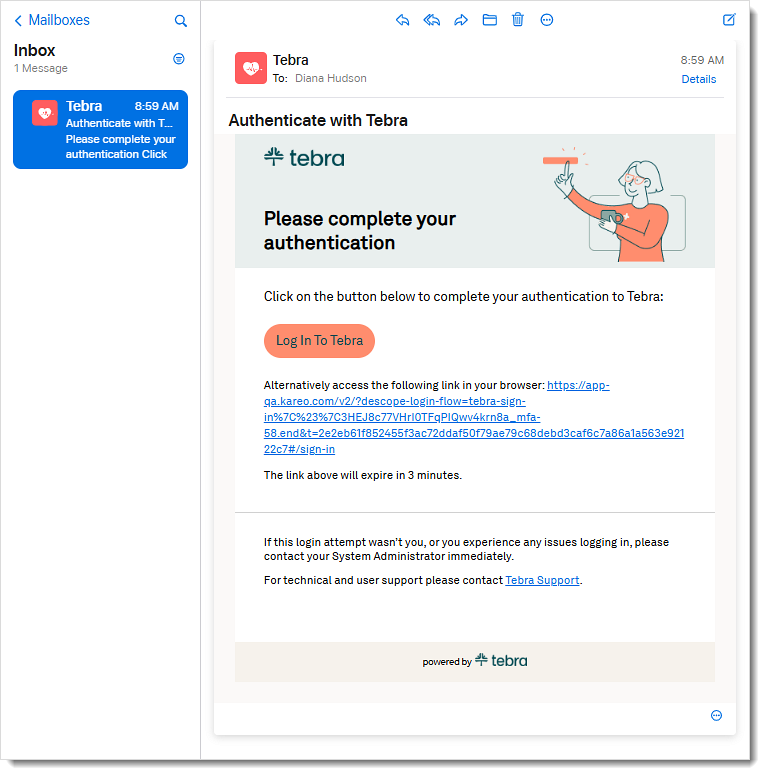
- Magic Link: Skip manual code entry altogether. Users can click a secure, single-use link sent to their email address to verify their email address, complete authentication, and return to Tebra. After the email address is verified, the user will have the option to select email a code when authentication is required again.
Note: These option is only applicable when logging into Tebra from app.kareo.com
Access Two-Factor Authentication
|
 |
Authenticator App Log In
|
 |
|
 |
|
 |
Magic Link Log In
|
 |
|
 |
Platform General Improvements
- Application to Person (A2P) approved practices can now send direct patient text messages from their dedicated A2P-approved practice number, giving patients a more recognizable and consistent communication experience while improving message deliverability and simplifying staff workflows. Feature will be deployed to customers in phases and completed by end of September 2026.
Platform Resolved Issues
- Fixed an issue where users sending messages using the all patient group were not sent
Tebra Payments
Tebra Payments Resolved Issues
- Fixed an issue where there was a delay in payouts for August 21, 2026
- Fixed an issue where some Tebra Payments activated practices could not select the Email and Text patient statement delivery methods